Category: 360 PHOTOGRAPHY AND VIDEO

ブラウン・ダニエルジョンの360度写真・動画撮影の経験や気づきなどです。

  • LatLongPatcher in DaVinci Resolve Fusion

    LatLongPatcher in DaVinci Resolve Fusion

    One of the biggest challenges in 360-degree video production is hiding the production footprint. Whether it is a tripod base, a camera operator, or an unsightly shadow, keeping your scene fully immersive requires seamless object removal.

    However, you cannot treat a 360-degree equirectangular file like a flat, standard video canvas. Because the image is wrapped into a 2:1 spherical projection, drawing directly on it using standard paint or tracking tools causes severe stretching and tearing at the poles (top and bottom) and edges.

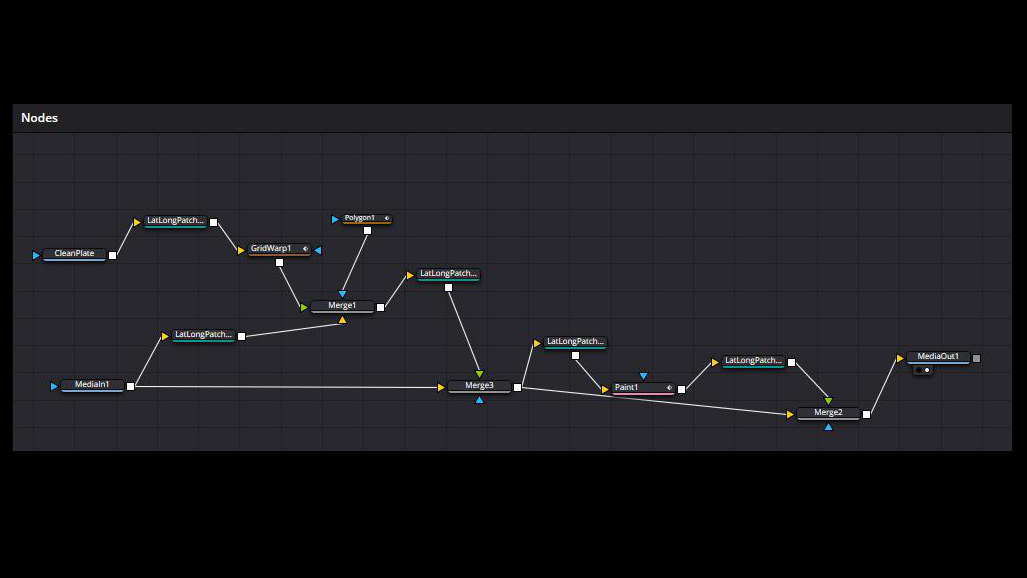
    To fix this, we use the LatLongPatcher node in DaVinci Resolve’s Fusion page. This node non-destructively “un-wraps” a specific region of your sphere into a flat, undistorted 2D perspective window, allowing you to perform flawless object removals before injecting the patch back into the 360-degree world.

    Phase 1: The Core Extraction Setup

    Before removing any objects, you must extract your target area into a flat, workable 2D canvas.

    The Node Layout:

    MediaIn1
    (Raw Video Source)
    LatLongPatcher1
    (Extract Mode)
    Your Cleanup Stream
    (Paint or Clean Plate)
    1. Import Media: Bring your original equirectangular footage (MediaIn1) into the Fusion grid.
    2. Add the Patcher: Press Shift + Spacebar, type LatLongPatcher, and add the node to your grid. Connect the output of MediaIn1 into it.
    3. Set to Extract: Select the LatLongPatcher node, navigate to the Inspector, and change the Method dropdown menu to Extract.
    4. Isolate the Object: Use the Pan (left/right) and Tilt (up/down) sliders to rotate the camera view until the object you want to remove (such as the tripod legs) is dead-center in your viewer window.
    5. Adjust Scale: Tweak the FoV (Field of View) slider to zoom in or out until you have a comfortable 2D workspace with enough surrounding texture around your object.

    Phase 2: Choosing Your Object Removal Method

    Depending on the complexity of your shot and whether the camera is moving, choose one of the following two professional removal workflows:

    Method 1: The Paint Node (Best for Stationary Shots & Organic Textures)

    This method is ideal for locked-off tripod shots or environments with organic textures—like grass, asphalt, or gravel—where you can easily clone pixels from a neighboring area.

    The Node Layout:

    LatLongPatcher1
    (Extracted 2D Window)
    Paint Node (Pnt)
    (Clone Tool Fixes)
    To Injection Stage
    (Phase 3 Setup)
    • Insert Paint: Add a Paint node directly after your extraction pipeline.
    • Select the Clone Tool: Look at the toolbar directly above the viewer window and select the Clone tool icon (represented by a rubber stamp).
    • Set Lifetime: In the Inspector, open the Stroke Controls tab. Change the Duration dropdown from Single Frame to All Frames. This ensures your paint stroke stays active across your entire timeline.
    • Sample and Clean: Hold down Alt (Windows) or Option (Mac) and click on a clean patch of texture near your target object to sample it. Release the key, and paint directly over the tripod or operator to clone the clean texture over it.

    Method 2: Clean Plate & GridWarp (Best for Complex Patterns & Dynamic Camera Movement)

    When the background texture is geometric (like floor tiles, brickwork, or hardwood floors) or when the camera is physically moving through space, a simple paint stroke will fail. This method utilizes an external clean plate still image and a GridWarp node to fix complex alignments.

    The Node Layout:

    LatLongPatcher1
    (Live Video Stream)
    [Background Input] Merge1 Node
    (Combines Streams)
    MediaIn2 (Clean Still)
    LatLongPatcher2 (Same Camera Matrix)
    GridWarp Node (Fixes Parallax Drift)
    [Foreground Input]

    The Reality of Parallax: Why We Need Motion Compensation

    It is a common misconception that camera mounts stay perfectly static relative to the background. If your camera is moving through an environment—whether it is mounted on a mechanical slider, pushed on a dolly, or rolling on a vehicle—and the object you want to remove is anchored to the environment (or if the camera moves independently of the support base below it), the physical distance between the camera lens and that object changes over time.

    As the camera approaches or recedes from the target area, spatial parallax occurs. The perspective lines of the floorboards, tile grouting, or brick patterns stretch, expand, and warp dynamically because the lens’s physical point of view is shifting. If you stamp a flat, static clean plate snapshot over this moving environment, it will look like a floating “sticker” within seconds because the ground underneath is physically changing perspective. To hide this asset cleanly, we must actively warp the texture to match the moving world.

    Step 1: Prep and Align the Clean Plate

    • Bring in the Still: Import your edited, tripod-free clean plate still image (MediaIn2) into your node graph.
    • Match the Viewport: Pipe it into a second LatLongPatcher node (LatLongPatcher2).
    • Crucial Alignment: Copy the exact Pan, Tilt, and FoV values from your first patcher and paste them into this second patcher. This ensures both 2D windows match pixel-for-pixel.

    Step 2: Correcting Perspective Shift with GridWarp

    • Insert Warp & Merge: Add a GridWarp node (GW) directly after your clean plate’s extraction pipeline. Connect its output into the Green Foreground Input of a Merge node (Merge1). Pipe your live video line (LatLongPatcher1) into the Yellow Background Input of that same Merge node.
    • Define the Source Mesh: Move your playhead to Frame 0. In the GridWarp Inspector, ensure the mode is set to Source. Sub-divide your grid using the X Grid and Y Grid sliders until you have a flexible mesh covering your clean plate area. Align the grid vertices with prominent lines on the floor (like grout lines or floorboard seams).
    • Warp the Destination: Move downstream to a frame where the camera movement has caused your clean plate texture to drift out of alignment with the live video background.
    • Correct Perspective Shift: In the Inspector, change the GridWarp mode dropdown from Source to Destination. Gently nudge the individual mesh vertices in your viewer. Warping the destination grid stretches and bends the static clean plate texture, forcing its perspective lines to realign perfectly with the moving background video as the camera’s spatial relationship to the ground changes.

    Phase 3: Injecting the Patch Back into the 360 World

    Once your object is cleanly painted out or perfectly perspective-warped, you must re-wrap your flat 2D patch back into a proper 2:1 equirectangular sphere.

    The Node Layout:

    Step 1: The Fix Stream
    Merge1 (Your Object Fix)
    Step 2: The Re-Wrap
    LatLongPatcher3 (Inject Mode)
    ▼ (Feeds into Foreground Input)
    Step 3: The Target Merge (Merge2)
    Combines the Inject Patch with the Raw Video Line (MediaIn1) as the Background
    Step 4: Terminal Render Target
    MediaOut1 Node
    1. Add the Injector: Place a final LatLongPatcher node (LatLongPatcher3) at the end of your clean patch stream.
    2. Set to Inject: In the Inspector, change the Method dropdown to Inject.
    3. Match the Viewport Matrix: Copy the exact Pan, Tilt, and FoV coordinates used in your initial extraction phase and paste them into this injection node. The node will automatically take your flat 2D fix, distort it spherically, and place it back precisely where it belongs in the 360-degree environment.
    4. Merge with Original Footage: Add a final Merge node (Merge2). Connect your original, untouched raw video line (MediaIn1) into the Yellow Background Input of the Merge node. Connect the output of your Injection node into the Green Foreground Input.
    5. Isolate with a Mask: To prevent your patch from accidentally overwriting clean areas outside your fix, attach a Polygon Mask node to the Blue Mask Input of the final Merge node. Draw a tight window around just your object removal area.

    Your final output from Merge2 will now display a flawless 360 video with the tripod or target object completely eliminated across the entire timeline, mapped perfectly to the sphere, and ready for your MediaOut1 node.

    About the Author:
    Daniel John Brown is a VR photographer, videographer, and founder of Meidansha. Based in Japan, he specializes in high-resolution immersive media and technical post-production workflows.
    Business & Portfolio: Connect with my corporate team at Meidansha.

    To see more on 360 photography and videography please see the category top

    360度映像のオブジェクト消去法:DaVinci Resolve FusionでLatLongPatcherを使いこなす

    360度動画制作における最大の課題の1つは、撮影時の機材やスタッフの痕跡をいかに隠すかということです。三脚のベース、カメラマンの映り込み、あるいは不自然な影など、完全に没入感のあるシーンを作るには、これらを綺麗に消去(オブジェクトリムーバル)する必要があります。

    しかし、360度正距円筒図法(エクイレクタングラー)のファイルを、通常のフラットな動画キャンバスと同じように扱うことはできません。映像が2:1の球状に投影されているため、通常のペイントツールやトラッキングツールを使って直接描き込むと、極部(画面の最上部・最下部)や左右の端で深刻な歪み(引き伸ばしや破れ)が発生してしまいます。

    この問題を解決するために、DaVinci ResolveのFusionページに用意されている「LatLongPatcher」ノードを使用します。このノードは、全天球映像の特定の領域を、歪みのないフラットな2Dパースペクティブ(透視投影)ウィンドウへ非破壊で「展開(アンラップ)」してくれます。これにより、2D上で完璧な消去作業を行ってから、再びそのパッチを360度の世界へと戻すことが可能になります。

    フェーズ 1:コアとなる展開セットアップ

    オブジェクトを消去する前に、まずは対象のエリアをフラットで作業しやすい2Dキャンバスとして抽出する必要があります。

    ノードの配置構造:

    MediaIn1
    (未加工のビデオソース)
    LatLongPatcher1
    (Extract モード)
    クリーンアップ処理
    (ペイントまたはクリーンプレート)
    1. 素材のインポート: 元のエクイレクタングラー映像(MediaIn1)をFusionのグリッド内に読み込みます。
    2. Patcherノードの追加: Shift + スペースキーを押し、LatLongPatcherと入力してノードをグリッドに追加します。MediaIn1の出力をこのノードに接続します。
    3. Extractに設定: LatLongPatcherノードを選択し、インスペクタを開いて「Method」ドロップダウンメニューを「Extract」(抽出)に変更します。
    4. オブジェクトの分離: 「Pan」(左右)と「Tilt」(上下)のスライダーを動かしてカメラの視野を回転させ、消去したいオブジェクト(三脚の脚など)がビューアウィンドウの真ん中に来るように調整します。
    5. スケールの調整: 「FoV」(視野角)スライダーを微調整し、オブジェクトの周囲のテクスチャが十分に収まる、作業しやすい適度な広さの2Dワークスペースを作ります。

    フェーズ 2:オブジェクト消去手法の選択

    カットの複雑さや、カメラが動いているかどうかに応じて、以下の2つのプロフェッショナルな消去ワークフローから最適な方を選択します。

    手法 1:ペイントノード(固定ショット&有機的なテクスチャに最適)

    この手法は、三脚を完全に固定して撮影したショットや、芝生、アスファルト、砂利などの有機的なテクスチャを持つ環境に最適です。周囲の綺麗なエリアからピクセルを簡単にクローン(複製)して上書きできます。

    ノードの配置構造:

    LatLongPatcher1
    (抽出された2Dウィンドウ)
    Paint ノード (Pnt)
    (クローンツールによる修正)
    インジェクション工程へ
    (フェーズ 3 の準備)
    • 有効期間の設定: インスペクタの「Stroke Controls」(ストローク制御)タブを開きます。「Duration」(期間)ドロップダウンを「Single Frame」(1フレーム)から「All Frames」(全フレーム)に変更します。これにより、描いた修正ストロークがタイムライン全体で持続するようになります。
    • サンプリングとクリーンアップ: Altキー(Windows)またはOptionキー(Mac)を押しながら、消去したい対象の近くにある綺麗なテクスチャ部分をクリックしてサンプルを採取します。キーを離し、三脚や人の上に直接ブラシで描き込んで、きれいなテクスチャを上書きしていきます。

    手法 2:クリーンプレート & GridWarp(複雑な模様 & 動的なカメラワークに最適)

    背景のテクスチャが幾何学的(床のタイル、レンガ、フローリングなど)である場合や、カメラが空間内を移動している場合は、単純なペイントによる塗りつぶしは通用しません。この手法では、外部で編集した三脚のない静止画(クリーンプレート)と「GridWarp」ノードを組み合わせ、複雑な位置合わせをクリアします。

    ノードの配置構造:

    LatLongPatcher1
    (実景映像ストリーム)
    [背景入力] Merge1 ノード
    (ストリームの合成)
    MediaIn2(クリーン静止画)
    LatLongPatcher2 (カメラマトリクスを一致)
    GridWarp ノード (視差によるズレの補正)
    [前景入力]

    視差(パララックス)の現実:なぜ動きの補正が必要なのか?

    「カメラの台座は背景に対して常に完全に固定されている」というのは、よくある誤解です。カメラが電動スライダー、ドリー、あるいは移動する車両に設置されて空間内を移動しており、かつ消去したいターゲットが地面や壁に固定されている場合(またはカメラが下の支柱ベースとは独立して位置を変える場合)、カメラレンズと消去対象の物理的な距離は時間の経過とともに絶えず変化します。

    カメラが対象エリアに接近または後退するにつれて、空間的な「視差(パララックス)」が生じます。レンズの物理的な視点(Point of View)がシフトするため、床板のライン、タイルの目地、レンガの模様といったパース線が、動的に引き伸ばされたり、広がったり、歪んだりします。もし、この動く環境の上にフラットで静止したクリーンプレートをただ重ねただけでは、下の地面のパースが変化していくため、ものの数秒でパッチが浮いた「ステッカー」のように見えてしまいます。この機材跡をきれいに隠し通すには、移動する世界に合わせてテクスチャを能動的に歪ませる(ワープさせる)必要があります。

    ステップ 1:クリーンプレートの準備と配置

    • 静止画の読み込み: 外部で三脚を消去・加工済みのクリーンプレート静止画(MediaIn2)をノードグラフに読み込みます。
    • 画角の完全一致: これを2つ目のLatLongPatcherノード(LatLongPatcher2)に接続します。
    • 極めて重要な位置合わせ: 1つ目のPatcher(映像用)の「Pan」「Tilt」「FoV」の数値を完全にコピーし、この2つ目のPatcherにペーストします。これにより、双方の2Dウィンドウがピクセル単位で完全に一致します。

    ステップ 2:GridWarpによるパースのズレの補正

    • WarpとMergeの挿入: クリーンプレートを展開した直後に「GridWarp」ノード(GW)を追加します。その出力をMergeノード(Merge1)の「緑色の前景入力」に接続します。そして、動く実景映像のライン(LatLongPatcher1)を、同じMerge1の「黄色の背景入力」に接続します。
    • ソースメッシュの定義: タイムラインの「フレーム 0」に移動します。GridWarpのインスペクタで、モードが「Source」に設定されていることを確認します。「X Grid」「Y Grid」のスライダーを使ってグリッドを細かく分割し、クリーンプレートのパッチ範囲をカバーする柔軟なメッシュを作ります。グリッドの頂点を、床の目地やフローリングの継ぎ目など、目立つラインに合わせて配置します。
    • デスティネーションのワープ: カメラの移動によって、クリーンプレートのテクスチャが周囲の映像のラインからズレてきてしまっている、少し進んだ先のフレームへ移動します。
    • パースシフトの修正: インスペクタで、GridWarpのモードドロップダウンを「Source」から「Destination」(ディスティネーション)に変更します。ビューア上で、メッシュの各頂点をつまんで静かに動かします。目的地(Destination)のグリッドを歪ませることで、静止したクリーンプレートのテクスチャが伸縮・変形し、カメラと地面との位置関係の変化に伴って動く背景映像のパース線へと完璧に再整列させることができます。

    フェーズ 3:パッチを360度の世界へインジェクション(戻し)する

    オブジェクトがきれいにペイント消去されたか、あるいは完璧にパース補正されてマージされたら、そのフラットな2Dパッチを再び正しい2:1のエクイレクタングラー全天球へと戻す必要があります。

    ノードの配置構造:

    ステップ 1:修正済みのストリーム
    Merge1(オブジェクト修正箇所)
    ステップ 2:全天球への再カプセル化
    LatLongPatcher3(Inject モード)
    ▼ (前景入力へ接続)
    ステップ 3:合成用の最終マージ(Merge2)
    インジェクションしたパッチと、背景となる元の生の映像ライン(MediaIn1)を合成
    ステップ 4:最終レンダリング出力
    MediaOut1 ノード
    1. 戻し用Patcherの追加: クリーンパッチが完成したストリームの最後に、3つ目の「LatLongPatcher」ノード(LatLongPatcher3)を配置します。
    2. Injectに設定: LatLongPatcher3のインスペクタを開き、「Method」ドロップダウンを「Inject」(注入)に変更します。
    3. Viewportマトリクスの完全一致: 最初のフェーズ1(抽出時)で使用した「Pan」「Tilt」「FoV」の座標を完全にコピーし、このインジェクションノードにペーストします。これにより、ノードがフラットな2Dパッチを自動的に球状に歪ませ、360度の空間内の本来あるべき正確な位置へと配置してくれます。
    4. オリジナル映像との合成: 最後の「Merge」ノード(Merge2)を追加します。何も手を加えていない元の生映像ライン(MediaIn1)をMerge2の「黄色の背景入力」に接続します。そして、インジェクションノード(LatLongPatcher3)の出力を「緑色の前景入力」に接続します。
    5. マスクによる限定化: 修正パッチが、関係のない綺麗な領域まで誤って上書きしてしまわないように、「Polygon」マスクノードを最後のMerge2の「青色のマスク入力」に接続します。そして、オブジェクトを消去したエリアの周囲だけをタイトに囲むマスクを描きます。

    以上の工程により、Merge2からの最終出力は、三脚や機材がタイムライン全体にわたって完璧に消去され、全天球に完全にマッピングされた、非の打ち所がない360度動画となります。あとはこれを「MediaOut1」ノードへ送ればレンダリングの準備は完了です。

    著者について:
    ダニエル・ジョン・ブラウン(Daniel John Brown)は、VRフォトグラファー、ビデオグラファーであり、明段舎株式会社の代表。日本を拠点に、高解像度のイマーシブメディア(没入型メディア)の制作や、高度なポストプロダクションワークフローを専門としている。
    ビジネス&ポートフォリオ: コーポレートチームへのご連絡・ご依頼は Meidansha をご覧ください。

    360度動画や静止画編集について関心あればこのカテゴリーをご確認ください。


  • 8K VR Proxy Workflow in Davinici Resolve Studio 20

    8K VR Proxy Workflow in Davinici Resolve Studio 20

    日本語が後に続きます

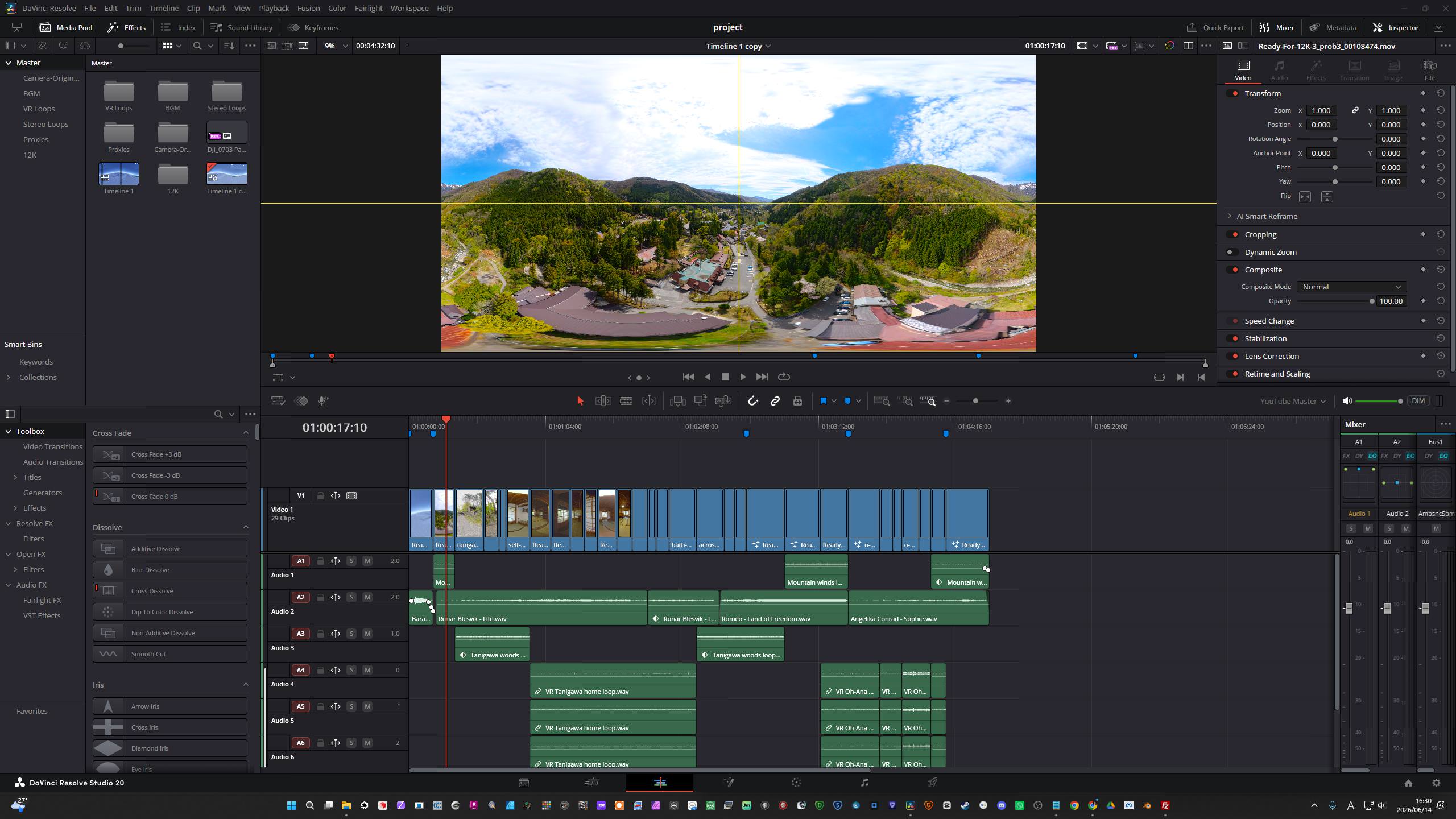
    This is a how-to article for 8K VR Proxy workflow in Davinici Resolve Studio 20. Editing high-bitrate, stitched 8K equirectangular files is notoriously brutal on computer hardware. Even on high-end Windows workstations, scrubbing natively through raw 8K 360-degree footage can easily turn your timeline into a choppy slideshow.

    To maintain a smooth creative flow, a proxy workflow is a necessity. However, if you try to use DaVinci Resolve Studio’s built-in “Generate Proxy Media” tool or the standalone Blackmagic Proxy Generator, you will hit a frustrating bottleneck: they force a standard 16:9 aspect ratio (like 1920×1080), squashing your perfect 2:1 spherical footage and breaking your stitching preview. Furthermore, batch-relinking these standard proxies fails completely with this format.

    To solve this, we must use a manual transcoding workflow that bypasses the automated proxy generator entirely, keeping your 2:1 aspect ratio intact and restoring silky-smooth playback. Here is the exact step-by-step blueprint.

    Phase 1: Review & Preparation (Insta360 Studio)

    The sole objective of this phase is to trim your raw data and prep it into a clean, “flat” master file. Do not waste time attempting to set a Point of Interest (POI) or altering your angles here; Insta360 Studio completely ignores timeline orientation and framing adjustments when exporting a clip as a true 360 video.

    1. Technical Setup

    • Lens Guard: In the Right Sidebar, click the Media Tab (first icon). Scroll down to Accessories and manually select Standard or Premium depending on your physical setup. Do not leave this on “Auto.”
    • Stitching: In the same Media Tab, scroll to Stitching Settings and select Optical Flow Stitching for the cleanest seams.
    • Stabilization: Leave this on its default FlowState Stabilization setting.

    2. The Timeline Cut

    • Trimming: Because we aren’t adjusting angles, your only task on the timeline is trimming. Move the playhead on the Bottom Timeline and use the Yellow Brackets to isolate and mark the exact section of the clip you want to export.

    3. High-Fidelity Export Settings

    Click the Yellow Export Icon (Bottom Right) and apply these settings to ensure your master file remains uncompressed and grade-ready:

    • Export Type: 360 Video
    • Resolution: 7680 x 3840 (8K)
    • Codec: ProRes 422 HQ
    • Image Processing: Uncheck both Color Plus and Remove Grain.
    • Keep it Flat: Do not add any sharpening and do not attempt any color grading inside Insta360 Studio. Keep the footage completely clean for the edit suite.

    Phase 2: The Windows-Optimized Proxy Workflow

    Now for the workaround. Because Resolve’s standard proxy tools ruin the 2:1 aspect ratio, we will use the Media Management tool to transcode custom, lightweight 2:1 proxies that Windows can handle natively.

    1. Transcode to MP4 (The Custom Method)

    Open DaVinci Resolve Studio and navigate to the Media Page (the first icon at the bottom).

    1. Select Your Footage: Highlight your newly exported 8K ProRes clips in the Media Pool.
    2. Open Media Management: Go to the top menu and select File > Media Management… then click on the Transcode tab at the top of the pop-up window.
    3. Configure the Custom 2:1 Settings: Set the parameters precisely to avoid the squash bug:
      Select: “All media” or “Selected timeline clips.”
      Format: MP4
      Video Codec: H.265
      Resolution: Select Custom and manually enter 1920 x 960 (for ultra-light 2K proxies) or 3840 x 1920 (for 4K proxies).
    4. Execute Transcode: Click Browse, select a dedicated Proxy folder on your fast external SSD, and click Start. Windows handles these custom H.265 MP4s seamlessly.

    2. Linking the Manual Proxies (Overcoming the Extension Deficit)

    Because you didn’t use Resolve’s standard “Generate Proxy” button, the automatic linker will often fail when you right-click the camera original and attempt a standard folder link. This happens because your master files are .mov (ProRes) and your proxies are .mp4 (H.265).

    To pair them properly without crashing your workflow, you have two options:

    • The Single File Method: If you only have a few clips, highlight your original 8K master clips in the Media Pool, right-click, and select Relink Proxy Media. Select the target file individually one by one.
    • The Batch Workaround (Loose File Match): If you are linking dozens of files, you need to use an advanced reconform search that tells DaVinci to find matching names while ignoring the file extension. Import your newly transcoded proxies into a separate bin. Select your main timeline, right-click and choose Timelines > Reconform from Bins. Under the match criteria, ensure File Name is checked and set it specifically to Loose file name match. Point it at your proxy bin, and Resolve will instantly jump the gap between the .mov and .mp4 containers.

    Once linked, a small “pxy” icon will appear on your clips, confirming your aspect ratio is now a perfect, unsquashed 2:1 sphere.

    Mastering the Timeline Setup & Final Export

    When you are finished cutting your edit with proxies and are ready to color grade, match your master workflow, and export, you must configure your timeline correctly to ensure the final 8K delivery actually renders out without issues.

    1. Match Timeline to HQ Master Resolution

    Before hitting render, you must change your timeline settings to match the exact resolution of your high-quality master clips.

    • Right-click your active timeline in the Media Pool and select Timelines > Timeline Settings.
    • Uncheck “Use Project Settings.”
    • Set the resolution to your target master size: 7680 x 3840.

    2. Eliminate Black Bars & Check Project Settings

    Working with a true 2:1 equirectangular sphere means any structural mismatch will introduce accidental letterboxing or pillarboxing.

    • The Visual Check: Scan your timeline viewer to ensure there are no unintended black bars on the top, bottom, or sides of your image.
    • Image Scaling: In your master Project Settings, verify that your output scaling and aspect format match your target resolution perfectly. If your media aspect ratios are mismatching, ensure your input scaling is set to fill the frame cleanly without destroying the 360 geometry.

    3. Critical Render Deliver Page Check

    When you move over to the Deliver page to export your master file, there are two distinct settings you must check to ensure you don’t accidentally bake your low-resolution proxies into your final film:

    1. Go to the top menu: Playback > Proxy Handling and ensure it is set to Prefer Originals or Disable Proxies. Verify the change by looking for the small “HQ” badge replacing the “pxy” badge on your timeline clips.
    2. On the Deliver page sidebar, expand the Advanced Settings drop-down under the Video Export tab. Ensure that “Use proxy media” is unchecked. If left checked, Resolve will export your final master using the 2K transcoded files instead of your 8K ProRes masters.

    Why This Fixes “Jerky Playback”

    By using the Media Management tool instead of standard proxy generation, you optimize your system on three fronts:

    • The Container: Forcing an MP4 wrapper ensures smooth, native OS playback on Windows.
    • The Resolution: Dropping the resolution to 1920×960 asks your GPU to process a mere 1/16th of the data compared to the native 8K master.
    • Fusion Efficiency: Because the core video stream is now light, your system has massive overhead remaining to compute complex nodes, effects, and VR tracking—meaning your Fusion edits will be a lot smoother throughout the entire post-production pipeline.

    About the Author:
    Daniel John Brown is a VR photographer, videographer, and founder of Meidansha. Based in Japan, he specializes in high-resolution immersive media and technical post-production workflows.
    Business & Portfolio: Connect with my corporate team at Meidansha.

    To see more on 360 photography and videography please see the category top

    8K360度動画:DaVinci Resolve Studio 20でのプロキシー・ワークフロー

    高ビットレートでスティッチされた8Kのエクイレクタングラー(正距円筒図法)ファイルを編集するのは、PCハードウェアにとって非常に過酷な作業です。ハイスペックなWindowsワークステーションであっても、撮影したままの生の8K 360度映像をそのままスクラブしようとすると、タイムラインがカクつき、スライドショーのようになってしまいます。

    快適にクリエイティブな編集作業を進めるためには、プロキシワークフローが不可欠です。しかし、DaVinci Resolve Studioの内蔵「プロキシメディアの生成」ツールや、単体のBlackmagic Proxy Generatorを使おうとすると、不満の残る大きな壁にぶつかることになります。これらのツールは強制的に標準の16:9アスペクト比(1920×1080など)でプロキシを生成するため、せっかくの2:1の全天球映像が左右に潰れてしまい、スティッチのプレビューが崩れてしまうのです。 さらに、このフォーマットでは、生成された標準プロキシの一括再リンク(リリンク)も完全に失敗してしまいます。

    この問題を解決するには、自動のプロキシジェネレーターを完全にバイパスし、2:1のアスペクト比を維持したままスムーズな再生を実現する「手動トランスコード・ワークフロー」を使用する必要があります。その具体的なステップを以下に解説します。

    フェーズ 1:確認とエクスポート準備(Insta360 Studio)

    このフェーズの唯一の目的は、未加工のデータをトリミングし、クリーンで「フラット」なマスターファイルに仕上げることです。Insta360 Studioでは、クリップを真の360度動画としてエクスポートする場合、タイムライン上の方向(オリエンテーション)や画角(POI)の設定は完全に無視されます。 そのため、ここでアングル調整などに時間を費やす必要はありません。

    1. テクニカルセットアップ

    • レンズガード: 右サイドバーの「メディア」タブ(最初のアイコン)をクリックします。「アクセサリー」までスクロールし、実際の撮影環境に合わせて「標準」または「プレミアム」を手動で選択します。絶対に「自動」のままにしないでください。
    • スティッチング: 同じ「メディア」タブ内で「スティッチング設定」までスクロールし、継ぎ目が最も自然になる「オプティカルフロースティッチ(Optical Flow Stitching)」を選択します。
    • 手ブレ補正: デフォルトの「FlowState手ブレ補正」のままにしておきます。

    2. タイムラインのカット(トリミング)

    • トリミング: アングルの調整は行わないため、タイムライン上での作業はトリミングのみとなります。下のタイムラインで再生ヘッドを動かし、黄色のブラケット(角括弧)を使って、エクスポートしたいクリップの範囲を指定します。

    3. 高画質エクスポート設定

    右下の黄色の「エクスポート」アイコンをクリックし、マスターファイルの画質を落とさずに編集へ回せるよう、以下の設定を適用します。

    • エクスポートタイプ: 360度動画
    • 解像度: 7680 x 3840 (8K)
    • コーデック: ProRes 422 HQ
    • 画像処理: Color Plusノイズ除去の両方のチェックを外します
    • フラットな状態を維持: Insta360 Studio内ではシャープネスを追加せず、カラーグレーディングも行わないでください。編集ソフト側で本格的な作業ができるよう、映像は完全にクリーンな状態で出力します。

    フェーズ 2:Windowsに最適化したプロキシワークフロー

    ここからが回避策の本番です。Resolveの標準プロキシツールでは2:1のアスペクト比が崩れてしまうため、代わりに「メディア管理」ツールを使い、Windowsがネイティブで快適に処理できる軽量なカスタム2:1プロキシをトランスコードします。

    1. MP4へのトランスコード(カスタム方法)

    DaVinci Resolve Studioを開き、画面最下部にある「メディア」ページ(一番左のアイコン)に移動します。

    1. 素材の選択: メディアプール内で、先ほどエクスポートした8K ProResクリップを選択(ハイライト)します。
    2. メディア管理を開く: 上部メニューから「ファイル」>「メディア管理…」を選択し、表示されたウィンドウの上部にある「トランスコード」タブをクリックします。
    3. カスタム2:1設定の構成: 画面が潰れるバグを回避するため、以下のパラメータを正確に設定します。
      選択: 「すべてのメディア」または「選択したタイムラインのクリップ」
      フォーマット: MP4
      ビデオコーデック: H.265
      解像度: 「カスタム」を選択し、手動で「1920 x 960」(超軽量な2Kプロキシの場合)または「3840 x 1920」(4Kプロキシの場合)を入力します。
    4. トランスコードの実行: 「ブラウズ」をクリックし、高速な外付けSSD内に作成したプロキシ専用フォルダを指定して、「開始」をクリックします。WindowsはこれらのカスタムH.265 MP4ファイルをネイティブでスムーズに処理できます。

    2. 手動プロキシのリンク(拡張子の違いを克服する)

    Resolveの自動「プロキシ生成」ボタンを使用しなかったため、元のカメラ素材を右クリックして通常のフォルダリンクを試みても、自動リンカーが失敗することがよくあります。これは、マスターファイルが.mov(ProRes)であるのに対し、プロキシファイルが.mp4(H.265)と、拡張子が異なっていることが原因です。

    ワークフローを停滞させずにこれらを正しくペアリングするには、2つの方法があります。

    • 個別ファイル個別リンク法: クリップ数が少ない場合は、メディアプール内の元の8Kマスタークリップを選択し、右クリックして「プロキシメディアを再リンク」を選択します。対象のプロキシファイルを1つずつ手動で指定してリンクしていきます。
    • バッチ処理での回避策(緩やかなファイル名一致): 大量のファイルをリンクする必要がある場合は、拡張子を無視して一致するファイル名を探すようDaVinciに指示する、高度な「再コンフォーム」機能を使用します。まず、新しくトランスコードしたプロキシを別のビン(フォルダ)にインポートします。次に、メインのタイムラインを右クリックし、「タイムライン」>「ビンから再コンフォーム」を選択します。一致条件の項目で「ファイル名」にチェックを入れ、設定を「緩やかなファイル名一致(Loose file name match)」にします。ターゲットとしてプロキシの入ったビンを指定すると、Resolveは.mov.mp4のコンテナの違いを瞬時に飛び越え、すべてのファイルを一括でリンクしてくれます。

    正しくリンクされると、クリップに小さな「pxy」アイコンが表示され、アスペクト比が潰れていない、完璧な2:1の全天球映像になっていることが確認できます。

    タイムライン設定と最終エクスポートの極意

    プロキシを使ったカット編集が終わり、カラーグレーディングやマスターワークフローへの移行、および最終エクスポートの準備が整ったら、8Kの最終出力がトラブルなくレンダリングされるよう、タイムラインを正しく設定する必要があります。

    1. タイムラインを高画質マスターの解像度に合わせる

    レンダリングを開始する前に、タイムラインの設定を高画質のマスタークリップと全く同じ解像度に変更する必要があります。

    • メディアプール内のアクティブなタイムラインを右クリックし、「タイムライン」>「タイムライン設定」を選択します。
    • 「プロジェクト設定を使用」のチェックを外します。
    • 解像度をターゲットであるマスターサイズ:7680 x 3840に設定します。

    2. 黒帯の排除とプロジェクト設定の確認

    真の2:1エクイレクタングラー映像を扱う際、設定に少しでも不一致があると、意図しないレターボックス(上下の黒帯)やピラーボックス(左右の黒帯)が発生してしまいます。

    • 目視での確認: タイムラインビューアを細かくチェックし、映像の上下左右に意図しない黒帯が入っていないか確認します。
    • 画像のスケーリング: マスターの「プロジェクト設定」を開き、出力スケーリングとアスペクト比のフォーマットが、ターゲットの解像度と完全に一致しているか確認します。もし素材のアスペクト比にズレがある場合は、360度のジオメトリ(球体の形状)を崩さないように注意しながら、フレームが綺麗に埋まるよう入力スケーリングを設定してください。

    3. レンダリング時のデリバーページでの重要な確認項目

    マスターファイルをエクスポートするために「デリバー」ページに移動した際、低解像度のプロキシメディアが最終映像に誤って焼き付けられてしまうのを防ぐため、2つの設定を必ず確認してください。

    1. 上部メニューの「再生」>「プロキシの処理」に移動し、「オリジナルを優先」または「プロキシを無効化」に設定されていることを確認します。タイムライン上のクリップの「pxy」バッジが、高画質を示す「HQ」バッジに切り替わっていることで確認できます。
    2. デリバーページのサイドバーにある「ビデオ」エクスポートタブを開き、「詳細設定」ドロップダウンを展開します。「プロキシメディアを使用」のチェックが外れていることを必ず確認してください。 ここにチェックが入ったままだと、Resolveは8K ProResマスターではなく、トランスコードした2Kのプロキシファイルを使って最終出力をレンダリングしてしまいます。

    なぜこの方法で「再生のカクつき」が直るのか?

    標準のプロキシ生成ではなく、「メディア管理」ツールを使用することで、システムへの負荷を3つの側面から最適化できます。

    • コンテナの最適化: MP4ラッパーを強制することで、Windows環境においてOSネイティブでのスムーズな再生が可能になります。
    • 解像度の削減: 解像度を1920×960に落とすことで、GPUが処理すべきデータ量はネイティブの8Kマスターと比較してわずか16分の1になります。
    • Fusionの効率化: コアとなるビデオストリームが非常に軽量になるため、PCシステム側には複雑なノードやエフェクト、VRトラッキングの計算を行うための莫大な余力が残ります。結果として、ポストプロダクションの全工程を通してFusionでの編集作業が格段にスムーズになります。

    著者について:
    ダニエル・ジョン・ブラウン(Daniel John Brown)は、VRフォトグラファー、ビデオグラファーであり、名電社(Meidansha)の代表。日本を拠点に、高解像度のイマーシブメディア(没入型メディア)の制作や、高度なポストプロダクションワークフローを専門としている。
    ビジネス&ポートフォリオ: コーポレートチームへのご連絡・ご依頼は Meidansha をご覧ください。

    360度動画や静止画編集について関心あればこのカテゴリーをご確認ください。